
You are here: Start » Web HMI » Securing WebHMI with SSL
Securing WebHMI with SSL
- Introduction
- Prerequisites
- Enabling SSL - Step by Step
- Accessing WebHMI over HTTPS
- Troubleshooting
- Security Guidelines
Introduction
By default, Aurora Vision WebHMI communicates over plain HTTP and unencrypted WebSockets, which means the data exchanged between the browser and Aurora Vision Studio can be read or tampered with by anyone able to observe the network traffic. To protect this communication, Aurora Vision Studio can enable SSL/TLS for the WebHMI Runtime server, so that the WebHMI is served over HTTPS instead.
Prerequisites
To enable SSL, you need two files:
- Certificate - a PEM-encoded certificate file. If your certificate was issued by an intermediate Certificate Authority (CA), this file should contain the full certificate chain.
- Private Key - the PEM-encoded private key matching the certificate.
A self-signed certificate can be used for testing, but web browsers will display a trust warning for it. For production use, obtain a certificate issued by a trusted Certificate Authority.
Enabling SSL - Step by Step
- Open Tools » Settings » Web HMI.
- In the SSL section, set the Runtime Server Port that the HTTPS server should listen on (the default is 9443).
- Click the
...button next to Certificate and select your certificate file. - Click the
...button next to Private Key and select your private key file. - Click Apply or OK.
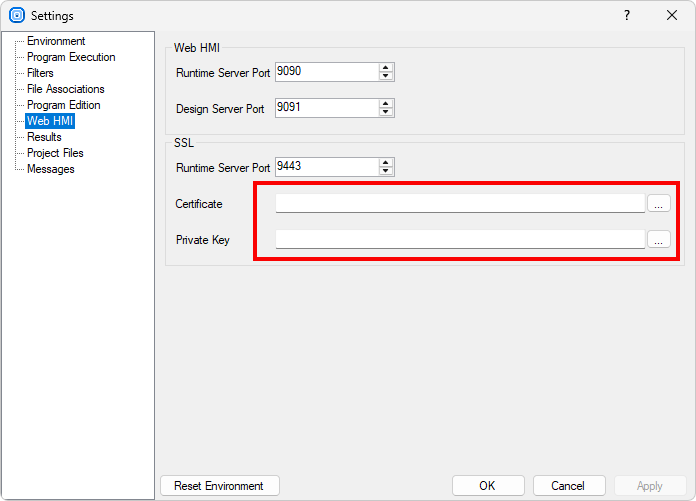
Both the certificate and the private key must be provided for SSL to be enabled. If either of them is missing, the WebHMI Runtime server starts without SSL support.
Accessing WebHMI over HTTPS
Once SSL is enabled, the WebHMI Runtime server can be reached over HTTPS by typing
https://<address>:<ssl-port> in the browser's address bar, using the SSL Runtime Server
Port configured above. SSL applies only to the Runtime server; the Design server
used while editing the WebHMI in Aurora Vision Studio is not affected. See
WebHMI Display for more information about the Runtime and Design servers.
Automatic Redirect to HTTPS
When SSL is enabled, the WebHMI Runtime server automatically redirects requests made to its regular HTTP port
to the corresponding HTTPS address on the SSL port (an HTTP 307 redirect). This means that once SSL is configured,
opening http://<address>:<port> in a browser takes you to the secure
https://<address>:<ssl-port> page automatically, without needing to update the address manually.
Troubleshooting
If the configured certificate or private key file cannot be found, Aurora Vision Studio reports an error naming the missing file when the WebHMI server starts. Verify that the paths configured in the Settings dialog point to existing files and that the certificate and private key are PEM-encoded.
Security Guidelines
- Use a CA-issued certificate in production - self-signed certificates should only be used for testing.
- Protect the private key file - restrict access to the private key file on disk to trusted users.
| Previous: Authorization | Next: Programming Reference |
