
You are here: Start » Filter Reference » Computer Vision » Deep Learning » MergeCharactersIntoOneLine

 Advanced
| Module: | DL_OCR |
|---|
Converts the output of the Deep Learning filter DL_ReadCharacters into a single text value, with the detected lines separated by a new line character.
| Name | Type | Range | Description | |
|---|---|---|---|---|
 |
inCharacters | OcrResultArray | Output of DL_ReadCharacters | |
|
inMaxGap | Real | 0.0 - 10.0 | Maximum gap between adjacent characters along the reading direction, denoted as fraction of 'A' char height |
|
inMaxShift | Real | 0.0 - 1.0 | Maximum misalignment between adjacent characters perpendicular to the reading direction, denoted as fraction of 'A' char height |
|
inMargin | Real | 0.0 - 10.0 | Additional margin added to result, denoted as fraction of 'A' char height |
|
inMinLength | Integer | 1 - 200 | Minimal number of chars to create line |
|
inPattern | GrammarRulesPattern | Pattern used in Grammar rules filtering; a new line escape sequence is supported to match across detected lines | |
|
inCandidates | OcrCandidateArrayArray* | Candidates - optional output of DL_ReadCharacters, Required when using grammar rules (when inPattern is not empty) | |
|
inMinScore | Real | 0.0 - 1.0 | Minimum score for filtering the line of text |
|
inLineDirection | LineDirection | Expected text orientation direction | |
 |
outText | String | All merged characters as a single text value, with the detected lines separated by a new line character | |
|
outLine | Rectangle2D | Minimal box which covers all selected character boxes | |
|
outScore | Real | Calculated score for the whole result | |
|
outMapping | Integer?Array | Mapping between input characters and the output text, outMapping[i] is 0 if inCharacters[i] has been added to the result, NIL otherwise | |
|
outProcessedCharacters | OcrResultArray | Contains the full set of character results after grammar rule processing. Maintains a one-to-one correspondence with inCharacters, preserving original positions but possibly with modified values, scores, or other attributes based on grammar rule application. | |
Description
\n). The whole result is therefore returned as one value together with a single bounding box outLine and a single outScore, instead of an array of lines.
Use MergeCharactersIntoLines when you need each line as a separate result; use this filter when the text should be read as one multi-line value.
Grammar Rules:
This feature can be used if we know the structure of the text we want to read. Define the inPattern string that you want to match against OCR results using regex syntax. This function uses more internal information inCandidates from Deep Learning filter DL_ReadCharacters to achieve the best matching to inPattern. Pattern is concatenation of pattern element. With this filter the grammar rules run once over the whole text, so a pattern may also span several lines (see the\n element below).
Note: To use grammar rules the inputs: inCharacters, inPattern, inCandidates are required
Pattern elements can be:
- Individual character: one of character supported in DL_ReadCharacters
- Escaping operational characters: Use a backslash to treat operational characters as normal:
\\, \*, \?, \., \+, \-, \], \[, \), \(. - Whitespace Macro: \s represents a whitespace gap between words on the same line, space is also supported.
- New line:
\nmatches a line break between two detected lines. Unlike\s(and space), which match a whitespace gap between words on the same line,\nmatches only the transition to the next line, so a single pattern can span several lines. Example:\w+\n\d+matches a word on one line directly followed by digits on the next line. Note:.(dot) does not match a line break. - Character class is a set of characters enclosed within square brackets []. It allows you to match any one character from the specified set. Example of usage:
- List of characters:
[abc]Matches any one of the characters a, b, or c. - Range:
[a-z]Matches any one of the characters from a to z. - Mix of them:
[a-zA-Z12]Matches any one of the characters from a to z, A to Z and 1,2. - Predefined character classes:
-
\dis equivalent to[0-9] -
\wcorresponds to[a-zA-Z0-9_] - . (dot) matches any single character on a line (\w plus special characters); it does not match a line break
Ex.[a.*|]is valid pattern which matches with the characters: a,.,*,|. - List of characters:
- Chain is an extended string created by concatenating individual characters and character classes. Instance:
-
abc- matches textabc -
[Aa]bc- matches texts:abc and Abc -
\dabc- matches texts:0abc, 1abc, ..., 9abc
-
- Alternative is used to match one pattern or another. It's sequence of chains separated by pipe symbol | in round brackets (). Demonstration:
-
(abc|def)matches texts:abc and def -
([Aa]bc|\dabc)matches texts:abc, Abc, 0abc, 1abc, ..., 9abc
Note: Round round brackets are required. Ex.a|b
Note: Nested brackets aren't supported. Ex.(a|(b|c)) -
- Special operators can modify or repeat the preceding expression.
- * (star): means zero or more occurrences of the preceding expression (in particular ".*" means any sequence), but tries to match as many characters as possible
- + (plus): means one or more occurrences of the preceding element, maximizing the number of characters matched.
- ? (question mark): means zero or one occurrence of the preceding element, with a preference for one.
- *? (lazy star): means zero or more occurrences of the preceding expression, but tries to match as few characters as possible.
- +? (lazy plus): means one or more occurrences, but minimizes the number of characters matched.
Note: Special operators cannot be used inside alternative: Ex.(a*|b)
Depending on the inMaxGap and inMaxShift values, characters are grouped into a different number of lines, which then end up separated by a new line character in outText. See the image below, where increasing the inMaxGap results in one line of text, whereas a smaller value will return two separate lines:
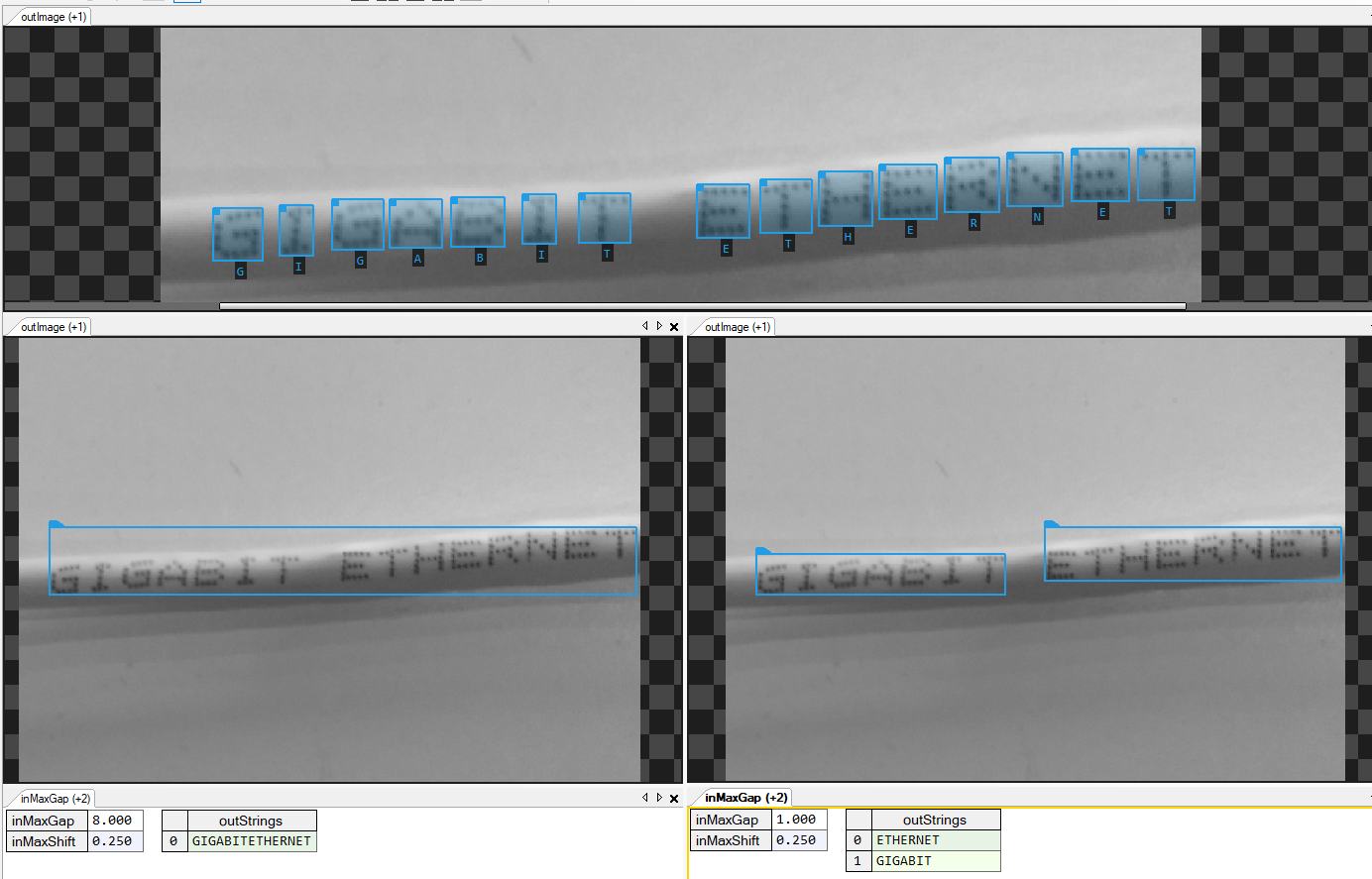
The lines are sorted by the Y value before being joined with a new line character.
The tool can also be used to get rid of false characters by setting a different value of the inMinLength parameter, which filters out short groups of characters returned by the DL_ReadCharacters tool.
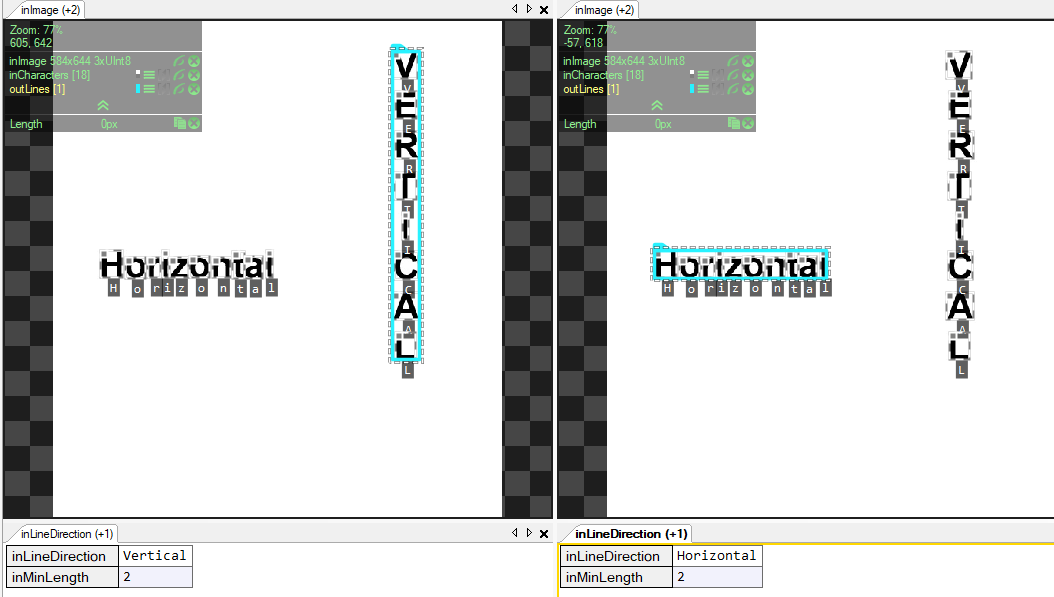
The inLineDirection parameter specifies the text orientation: Horizontal for left-to-right text, Vertical for top-to-bottom text. When set to Vertical, characters are grouped into columns instead of rows, and reading order follows the vertical axis.
Examples
PRD:2021/07/07 08:45
BEST BEF0RE:2024/07/07
1. Reading the whole label as a single value (empty inPattern). Characters on a line are joined with a space and the two lines with a new line character:
inPattern= (empty)
outText= PRD:2021/07/07 08:45\nBEST BEF0RE:2024/07/07
2. Matching across the line break with the \n element - the time at the end of the first line followed by the beginning of the second line:
inPattern= \d\d:\d\d\nBEST
outText= 08:45\nBEST
3. Matching a value that continues on the next line, e.g. a "best before" date split over two lines:
inPattern= BEF0RE:\d\d\d\d/\d\d/\d\d
outText= BEF0RE:2024/07/07
Remarks
This article concerns the functionalities related to another product: Deep Learning Add-on.
Errors
This filter can throw an exception to report error. Read how to deal with errors in Error Handling.
List of possible exceptions:
| Error type | Description |
|---|---|
| DomainError | If you want to use grammar rules, please add inCandidates from filter DL_ReadCharacters.outCandidates and set True value on DL_ReadCharacters.inCalculateCandidates. |
| DomainError | inCandidates and inCharacters must have the same size. |
Complexity Level
This filter is available on Advanced Complexity Level.
See Also
- DL_ReadCharacters – Performs optical character recognition using a pretrained deep learning model.
- MergeCharactersIntoLines – Converts a output of Deep Learning filter DL_ReadCharacters to lines of text.
