
You are here: Start » Technical Issues » Enabling Traffic in Firewall
Enabling Traffic in Firewall
Standard Windows Firewall or other active firewall applications should prompt for confirmation to enable incoming traffic upon first access to the device. Sample prompt message from standard Windows 7 Firewall is shown in the image below.
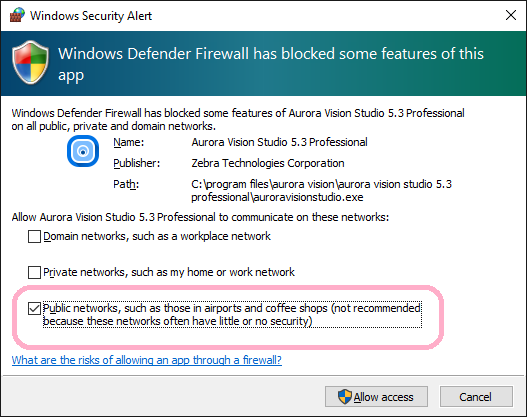
Please note that a device connected directly to the computer's network adapter in Windows Vista and Windows 7 will become an element of an unidentified network. Such a device will be treated by default as a Public network. In order to communicate with such a device, you must allow traffic in Public networks as well, as shown in the image above.
Clicking on Allow access will enable the application to stream video from a device. Because of a delay caused by the firewall dialog, the first run of a program may fail with a timeout error. In such situations, just try running the program again after enabling access.
For information about changing settings of your firewall application, search for how to allow a program to communicate through this firewall in Windows Help or a third-party application manual. GigE Vision® driver requires that incoming traffic is enabled on all UDP ports for application.