You are here: Start » Extensibility » Creating User Filters
Creating User Filters
Note 1: Creating user filters requires C/C++ programming skills.
Note 2: With your own C/C++ code you can easily crash the entire application. We are not able to protect against that.
Table of Contents
- Introduction
- Developing User Filters
- Creating User Types in User Filters
- Advanced Topics
- Troubleshooting and Examples
Introduction
User filters are written in C/C++ and allow the advanced users to extend capabilities of Aurora Vision Studio with virtually no constraints. They can be used to support a new camera model, to communicate with external devices, to add application-specific image processing operations and more.
Prerequisites
To create a user filter you will need:
- an installed Microsoft Visual Studio 2015/2017/2019 for C++, Express Edition (free) or any higher edition,
- the environment variable
AVS_PROFESSIONAL_SDK5_6in your system (depending on the edition; a proper value of the variable is set during the installation of Aurora Vision Studio), - C/C++ programming skills.
User filters are grouped in user filter libraries. Every user filter library is a single .dll file built using Microsoft Visual Studio. It can contain one or more filters that can be used in programs developed with Aurora Vision Studio.
User Filter Libraries Location
There are two types of user filter libraries:
- Global – once created or imported to Aurora Vision Studio they can be used in all projects. The filters from such libraries are visible in the Libraries tab of the Toolbox.
- Local – belong to specific projects of Aurora Vision Studio. The filters from such libraries are visible only in the project that the library has been added to.
A solution (.sln file) of a global user filter library can be located in any location on your hard disk, but the default and recommended location is
%PUBLIC%\Documents\Aurora Vision Studio 5.6 Professional\Sources\UserFilters(depends on the version of Aurora Vision Studio).
The output .dll file built using Microsoft Visual Studio and containing global user filters has to be located in
%PUBLIC%\Documents\Aurora Vision Studio 5.6 Professional\Filters\x64(depends on the edition (bitness))
This path is set in the initial settings of the generated Microsoft Visual Studio project. For global user filter libraries, this path must not be changed because Aurora Vision Studio monitors this directory for changes of the .dll files. The global user filter .dll file for Aurora Vision Executor has to be located in
%PUBLIC%\Documents\Aurora Vision Studio 5.6 Runtime\Filters\x64.
For the 32-bit edition the last subdirectory should be changed from x64 to Win32. The local user filter .dll file for Aurora Vision Executor has to be located in the path configured in the user filter properties. You can modify this path by editing user filters library properties in Project Explorer.
A local user filter library is a part of the project developed with Aurora Vision Studio and both source and output .dll files can be located anywhere on the hard drive. Use the Project Explorer task panel to check or modify paths to the output .dll and Microsoft Visual Studio solution files of the user filter library. The changes of the output .dll file are monitored by Aurora Vision Studio regardless of the file location.
It's a good practice to keep the local user filter library sources (and the output .dll) relative to the location of the developed project, for example in a subdirectory of the project.
Adding New Global User Filter Libraries
To add a new user filter library, start with File » Add/Modify Global User Filters » New Global User Filter Library....
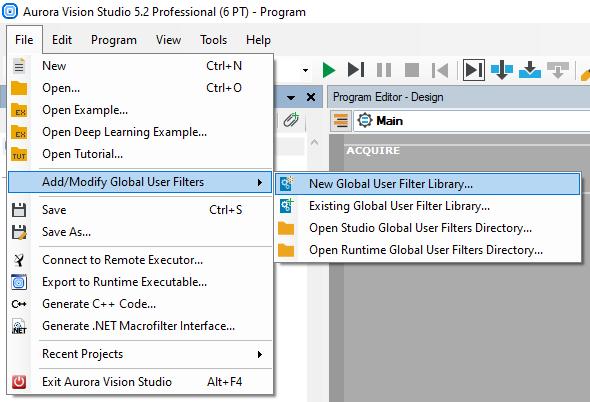
The other option is to use the Create New Global User Filter Library button from the Project Explorer panel.
A dialog box will appear where you should choose:
- name for the new library,
- type of the library: local (available in current project only) or global (available in all projects),
- location of the solution directory,
- version of Microsoft Visual Studio (2015, 2017 or 2019),
- whether Microsoft Visual Studio should be opened automatically,
- whether the code of example user filters should be added to the solution - a good idea for users with less experience with user filters programming.
If you choose Microsoft Visual Studio to be opened, you can build this solution instantly. A new library of filters will be created and after a few seconds loaded to Aurora Vision Studio. Switch back to Aurora Vision Studio to see the new filters in:
- Appropriate categories of Libraries tab (global user filters, category in Libraries tab is based on the category set in filter code)
- Project Explorer (local user filters)
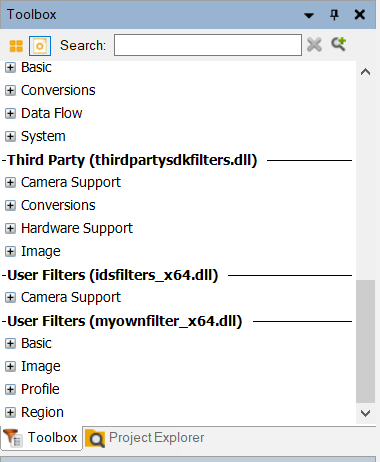
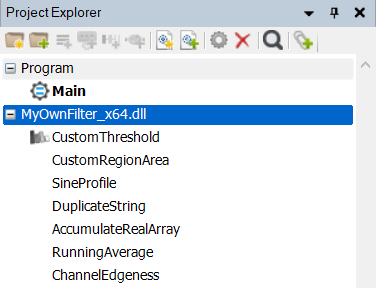
You can work simultaneously in both Microsoft Visual Studio and Aurora Vision Studio. Any time the C++ code is built, the filters will get reloaded. Just re-run your program in Aurora Vision Studio to see what has changed.
If you do not see your filters in the above-mentioned locations, make sure that they have been compiled correctly in an architecture compatible with your Aurora Vision Studio architecture: x86 (Win32) or x64.
Adding New Local User Filter Libraries
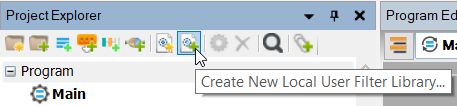
To add a new local user filter use the "Create New Local User Filter Library.." button in the Project Explorer panel as shown in the image below:
Developing User Filters
User Filter Project Configuration
User filter project files (.sln and .vcxproj) are generated by Aurora Vision Studio when adding a new user filter library.
The settings of user filter project are gathered in a .props file available in the props subdirectory of the Aurora Vision Studio SDK (environment variable AVS_PROFESSIONAL_SDK5_6), typically
C:\Program Files\Aurora Vision\Aurora Vision Studio 5.6 Professional\SDK\props.
If you want to configure the existing project to be a valid user filter library, please use the proper .props file (file with v140 suffix is dedicated for Microsoft Visual Studio 2015, v141 for 2017 and v142 for 2019).
Basic User Filter Example
The example below shows the whole source code for a basic user filter. In this example the filter performs a simple threshold operation on an 8-bit image.
#include "UserFilter.h"
#include "AVL_Lite.h"

#include "UserFilterLibrary.hxx"

namespace avs
{
	// Example image processing filter
	class CustomThreshold : public UserFilter
	{
	private:
		// Non-trivial outputs must be defined as a filed to retain data after filter execution.
		avl::Image outImage;

	public:
		// Defines the inputs, the outputs and the filter metadata
		void Define() override
		{
			SetName		(L"CustomThreshold");
			SetCategory	(L"Image::Image Thresholding");
			SetImage	(L"CustomThreshold_16.png");
			SetImageBig	(L"CustomThreshold_48.png");
			SetTip		(L"Binarizes 8-bit images");

			//					 Name						Type				Default		Tool-tip
			AddInput			(L"inImage",				L"Image",			L"",		L"Input image"    );
			AddInput			(L"inThreshold",			L"Integer<0, 255>",	L"128",		L"Threshold value");
			AddOutput			(L"outImage",				L"Image",						L"Output image"   );
		}

		// Computes output from input data
		int Invoke() override
		{
			// Get data from the inputs
			avl::Image inImage;
			int inThreshold;

			ReadInput(L"inImage", inImage);
			ReadInput(L"inThreshold", inThreshold);

			if (inImage.Type() != avl::PlainType::UInt8)
				throw atl::DomainError("Only uint8 pixel type are supported.");

			// Get image properties
			int height = inImage.Height();

			// Prepare output image in this same format as input
			outImage.Reset(inImage, atl::NIL);

			// Enumerate each row
			for (int y = 0; y < height; ++y)
			{
				// Get row pointers
				const atl::uint8* p = inImage.RowBegin<atl::uint8>(y);
				const atl::uint8* e = inImage.RowEnd<atl::uint8>(y);
				atl::uint8*       q = outImage.RowBegin<atl::uint8>(y);

				// Loop over the pixel components
				while (p < e)
				{
					(*q++) = (*p++) < inThreshold ? 0 : 255;
				}
			}

			// Set output data
			WriteOutput(L"outImage", outImage);

			// Continue program
			return INVOKE_NORMAL;
		}
	};

	// Builds the filter factory
	class RegisterUserObjects
	{
	public:
		RegisterUserObjects()
		{
			// Remember to register every filter exported by the user filter library
			RegisterFilter(CreateInstance<CustomThreshold>);
		}
	};

	static RegisterUserObjects registerUserObjects;
}
Structure of User Filter Class
A user filter is a class derived from the UserFilter class defined in UserFilter.h header file. When creating a filter without state you have to override two methods:
- Define – defines the interface of the filter, including its name, category, inputs and outputs.
- Invoke – defines the routine that transforms inputs into outputs.
When creating a filter with state (storing information from previous invocations) the class is going to have some data fields and two additional methods have to be overridden:
- Init – initializes the state variables, invoked at the beginning of a Task parenting the instance of the filter, may be invoked multiple times during filter instance lifetime. Always remember to invoke the base type's Init() method.
- Stop – deinitializes the state variables, including releasing external and I/O resources (like file handles or network connections), must not affect data on filter outputs, invoked at the end of a Task parenting the filter instance (to pair every Init call).
- Release – releases the memory of output variables, invoked at the end of a Task macrofilters marked to release memory.
- The method is called only when the macrofilter has the option Optimize memory enabled (available in its properties).
When a user filter class is created it has to be registered. This is done in the RegisterUserObjects function which is defined at the bottom of the sample user filters' code. You do not need to call it manually, it's called by Aurora Vision Studio while loading filters from the .dll file.
Structure of Define Method
Use the Define method to set the name, category, image (used as the icon of the filter), type and tooltip for your filter. All of this can be set using the appropriate Set... methods.
The Define method should also contain a definition of the filter's external interface, which means: inputs, outputs and diagnostic outputs. The external interface should be defined using AddInput, AddOutput and AddDiagnosticOutput methods. These methods allow you to define the name, type and tooltip for every input/output of the filter. For inputs a definition of the default value is also possible.
Filter type
Filter types control how the user filter is displayed in Aurora Vision Studio and what operations can be done to it. The type can be set with the SetFilterType method.
Below are the available filter types:
- LoopGenerator - indicates the filter can provide information about whether its containing task should loop.
Those filters are distinguished in Aurora Vision Studio by the gear icon. The filter's invoke method should return
INVOKE_LOOPorINVOKE_END. If it is possible for the loop to go in reverse direction the filter should have the IsReversible attribute. - IoFunction - indicates the filter's execution involves I/O operations that may be costly. Those filters are distinguished in Aurora Vision Studio by the red gear icon and by default cannot be executed in array mode (which can be overridden with the attribute AllowArrayExecution).
- IoLoopGenerator - combination of the two above types. Those are distinguished by the gray gear icon.
- LoopAccumulator - indicates the filter stores data from previous iterations. This type by default cannot be executed in array mode.
Attributes
Aurora Vision Studio uses a set of additional attributes for ports and filters. To apply an attribute use the AddAttribute method. Example:
AddAttribute(L"ArraySync", L"inA inB");
Most attributes require specific values to be provided (like the name of a port or one of available options).
Other parameters function more like flags - they are disabled by default and are enabled only if:
- they are present,
- their value is not an empty string.
List of attributes:
| Attribute Name | Description | Attribute Value (example) | Comment |
|---|---|---|---|
| ArraySync | Defines a set of synchronized ports. |
L"inA inB"
|
Informs that arrays in inA and inB require the same number of elements. Both inputs and outputs can be synchronized with each other. |
| UserLevel | Defines user level access to the filter. |
L"Advanced"
|
Only users with the Advanced level will find this filter in the Libraries tab. Available levels: Beginner, Advanced, Expert. |
| Tip | Defines additional documentation text. |
L"Use this filter for creating a line."
|
Description that will show up in the filter's tooltip. Can also be set with the SetTip method |
| AllowedSingleton | Filter can accept singleton connections on input |
L"inA"
|
User can connect a single value to inA which has Array type (automatically creates arrays). |
| FilterGroup | Defines element of filter group. |
L"FilterName<VariantName> default ## Description for group"
|
Creates a FilterName with default element VariantName. More detailed description in Defining Filter Groups |
| AllowArrayExecution | Controls if filter can be executed in array mode. |
L"true"
|
Only meaningful on filters of type IoFunction, LoopGenerator, IoLoopGenerator or LoopAccumulator. This is a flag attribute. |
| IsReversible | Controls if loop generating filter can iterate back. |
L"true"
|
Only meaningful on filters of type LoopGenerator and IoLoopGenerator. To check the direction of iteration use IsReversedEnumerationDirection(). This is a flag attribute. |
| Tags | Defines alternative names for this filter. |
L"DrawText DrawString PutText"
|
When user searches for any of the given words this filter will be in result list. Can also be set with the SetTags method. |
| CustomHelpUrl | Defines alternative URL for this filter. |
L"http://adaptive-vision.com"
|
When user press F1 in the Program Editor alternative help page will be opened. |
Defining Filter Groups
Several filters can be grouped into a single group, which can be very helpful for users who want to switch between variants of very similar operations.
To create a filter group define attribute L"FilterGroup" with a value matching this pattern:
FilterName<VariantName> default ## Description for group
- the "default" word indicates this is the default filter of the group.
- The text following "##" defines the tooltip for whole group.
- The description and the default keyword should only occur once per group. Preferably both on one filter.
- For the remaining filters, add only the first part -
L"FilterName<NextVariant>"
Example usage:
// Default filter FindCircle -> Find: Circle
AddAttribute(L"FilterGroup", L"Find<Circle> default ## Finds an object on the image");
...

// Second variant FindRectangle -> Find: Rectangle
AddAttribute(L"FilterGroup", L"Find<Rectangle>");
...

// Third variant FindPolygon -> Find: Polygon
AddAttribute(L"FilterGroup", L"Find<Polygon>");
...
As result a filter group Find will be created with three variants: Circle, Rectangle, Polygon.
Using custom User Filter Icons
Using methods SetImage and SetImageBig user can assign a custom icon for user filter. Filter icon must be located in the same directory as the output user filter DLL file.
There are some requirements and recommendations for using icons:
- The File type must be one of these: BMP, GIF, JPEG, PNG, TIFF. PNG is recommended.
- The icon should be square and have the recommended size for the type. Too large images may impact performance.
- The file name should end with the recommended suffix.
- Unless the same icon is used for multiple filters, its file name should start with the filter's name
| Icon type | Size | Used in | Suffix | Set with |
|---|---|---|---|---|
| Small Icon | 16x16 | Project Explorer and search results | _16 |
SetImage |
| Big Icon | 48x48 | Program Editor | _48 |
SetImageBig |
| Description Icon | 72x72 | Filter group selection window | _D |
Automatically generated (or with AddAttribute("ToolboxImage", ...))) |
The generation process for the description icon is as follows:
- If the attribute ToolboxImage is set, try to load the given file.
- Otherwise, try to load image matching this pattern:
{Filter_name}_D.png. - If that fails and the big icon name is specified, change the suffix to
_Dand try to load that file. - If that fails and the big icon is correctly set, use it as the description icon.
Note: The small and big icons are independent from each other - if left unspecified, one will not be automatically used to generate the other.
Structure of Invoke Method
The Invoke method has to contain 3 elements:
- Reading data from inputs
To read the value passed to the filter input, use the ReadInput method. This is a template method supporting all Aurora Vision Studio data types. The ReadInput method returns the value (by reference) using its second parameter.
- Computing output data from input data
It is the core part. Any computations can be done here
- Writing data to outputs
Similarly to reading, there is a method WriteOutput that should be used to set values returned from filter on filter outputs.
Data types that don't contain blobs (i.e. int, avl::Point2D, avl::Rectangle2D) can be simply returned by passing the local variable to the WriteOutput method. Output variables with blobs (i.e. avl::Image, avl::Region) should be declared at least in a class scope.
	class MyOwnFilter : public UserFilter
	{
		int Invoke()
		{
			int length;
			// ... computing the length value...
			WriteOutput("outLength", length);
		}

		// ...
	}
All non-trivial data types like Array, Image, Region or ByteBuffer should be defined as a filter class field.
This solution has two benefits:
- Reduces performance overhead for creating new objects in each filter execution,
- Ensures that types that contain blobs are not released after the filter execution.
For the sake of clarity it is a good habit to define all filter variables as class members.
	class MyOwnFilter : public UserFilter
	{
		private:
            // Non-trivial type data
			avl::Image image;

		int Invoke()
		{
			// ... computing image ...
			WriteOutput("outImage", image);
		}

		// ...
	}
Invoke has to return one of the four possible values:
INVOKE_ERROR- when something went wrong and program cannot be continued.INVOKE_NORMAL- when everything is OK and the filter can be invoked again.INVOKE_LOOP- when everything is OK and the filter requests more iterations.INVOKE_END- when everything is OK and the filter requests to stop the current loop.
For example the filter ReadVideo returns INVOKE_LOOP whenever a new frame is successfully
read and INVOKE_END when the end is reached. INVOKE_NORMAL is returned by filters that do not have
any influence on the continuation or termination of the current loop (for example ThresholdImage).
All filter outputs should be assigned by WriteOutput before filters return status. Missing assignments may result in random data access in complex program structure. On an INVOKE_END result, the filter should set output values as in the last iteration.
In case of error also exceptions can be thrown. Use atl::DomainError for signaling problems connected with input data. All hardware problems should be signaled using atl::IoError. For more information please read Error Handling
Registering
After implementing the user filters they must be registered. This is done by defining a new class named RegisterUserObjects and creating a static instance of it.
In its constructor RegisterFilter should be called on an instance of every defined user filter.
class RegisterUserObjects
{
public:
    RegisterUserObjects()
    {
        RegisterFilter(CreateInstance<CustomFilter1>);
        RegisterFilter(CreateInstance<CustomFilter2>);
        RegisterTypeDefinitionFile("user_type_definition.avtype");
    }
};

static RegisterUserObjects registerUserObjects;
You can use types defined in a user filter library in this user filters library as well as in all other modules of the project. If you want to use the same type in multiple user filters libraries then you should declare these types in each user filters library.
Using Arrays
User filters can process not only single data objects, but also arrays of them. In Aurora Vision Studio, arrays are represented by data types with suffix Array (i.e. IntegerArray, ImageArray, RegionArrayArray). Multiple Array suffixes are used for multidimensional arrays. In C++ code of user filters, atl::Array<T> container is used for storing objects in arrays:
| Studio | C++ |
|---|---|
| IntegerArray | atl::Array< int > |
| ImageArray | atl::Array< avl::Image > |
| RegionArrayArray | atl::Array< atl::Array< avl::Region > > |
For more information about types from atl and avl namespaces, please refer to the documentation of Aurora Vision Library.
Diagnostic Mode Execution and Diagnostic Outputs
User filters can have diagnostic outputs. Diagnostic outputs can be helpful when developing programs in Aurora Vision Studio. The main purpose of this feature is to allow the user to view diagnostic data on the Data Previews, but they can also participate in the data flow and can be connected to an input of any filter. This type of connection is called a diagnostic connection and causes the destination filter to be executed in the Diagnostic mode (filter will be invoked only in the Diagnostic mode of program execution).
When a program is executed in the Non-Diagnostic mode, values of the diagnostic outputs shouldn't be (for performance purposes) computed by any filter.
In user filters, you should use the IsDiagnosticMode() method for conditional computation of the data
generated by your filter for diagnostic outputs. If the method returns True, execution is in the Diagnostic mode
and values of the diagnostic outputs should be computed, otherwise, the execution is in the Non-Diagnostic mode and your filter shouldn't
compute such values.
Filter Work Cancellation
Aurora Vision Studio allows you to stop the execution of a filter during time-consuming computations. To use this option the function IsWorkCancelled() can be used.
If the function returns True, the long computation should be stopped because the user pressed the "Stop" button.
Using Dependent DLL
User filter libraries are often created as wrappers of third party libraries, e.g. of APIs for some specific hardware. These libraries often come in the form of DLL files. For a user filter to work properly, the other DLL files must be located in an accessible disk location at runtime, or the user gets the error code 126, The specified module could not be found. MSDN documentation specifies possible options in the article Dynamic-Link Library Search Order. From the point of view of user filters in Aurora Vision Studio, the most typical option is the one related to changing the PATH environment variable – almost all camera manufacturers follow this way. For local user filters it is also allowed to add dependent DLL in the same directory as the user filter DLL.
Alternatively, it is possible to create a new directory for a global user filter library:
%PUBLIC%\Documents\Aurora Vision Studio 5.6 Runtime\Filters\Deps_x64
after which the user filter's dependent DLL files can be stored inside of it.
Creating User Types in User Filters
When creating a user filter, add to the project an AVTYPE file with a user types description. The file should contain type descriptions in the same format as the one used for creating User Types in a program. See Creating User Types. Sample user type description file:
enum PartType
{
	Nut
	Bolt
	Screw
	Hook
	Fastener
}

struct Part
{
	String 	Name
	Real	Width
	Real	Height
	Real	Tolerance
}
In your C++ code declare structures/enums with the same field types, names and order. If you create an enum then you can start using this type in your project instantly. For structures you must provide overrides of the ReadData and WriteData functions in the avs namespace for serialization and deserialization.
In these functions you should serialize/deserialize all fields of your structure in the same order you declared them in the type definition file.
It is recommended to define structures and enums in the avs namespace, as that is where ReadData and WriteData for native avl types are defined.
Below is an example of how to define a structure and an enumeration.
Structures
Declaration:
struct Part
{
	atl::String	Name;
	float       Width;
	float       Height;
	float       Tolerance;
};
Deserialization function:
void avs::ReadData(atl::BinaryReader& reader, Part& outPart)
{
	ReadData(reader, outPart.Name);
	ReadData(reader, outPart.Width);
	ReadData(reader, outPart.Height);
	ReadData(reader, outPart.Tolerance);
}
Serialization function:
void avs::WriteData(atl::BinaryWriter& writer, const Part& inValue)
{
	WriteData(writer, inValue.Name);
	WriteData(writer, inValue.Width);
	WriteData(writer, inValue.Height);
	WriteData(writer, inValue.Tolerance);
}
Enumerations
Declaration:
enum PartType
{
	Nut,
	Bolt,
	Screw,
	Hook,
	Fastener
};
Serialization/Deserialization functions are not required for enums.
Note: Do not manually define values for enum options. Enums declared in Studio always start at 0 and increase by one in order of declaration. Any difference from that order may cause exceptions or selection of wrong option.
Registering user types
The file with user type definitions also has to be registered (if present). This is done with the RegisterTypeDefinitionFile method which accepts the path to the file. The path should be absolute or relative to the user filter DLL file.
Complex types
The CPP implementation of a user type does not have to be identical, only functionally similar.
User types are passive data structures (all fields are precalculated), but CPP objects can have dynamically calculated properties. For example:
struct InspectionResults
{
    float   length;
    bool    check_length(); // method used to validate length
    float   width;
    bool    check_width();  // method used to validate width
};
This object only stores 2 fields, the rest is calculated when needed. An equivalent user type implementation of that would be:
struct InspectionResults
{
    Real 	Length
    Bool	LengthCorrect
    Real	Width
    Bool	WidthCorrect
}
The serialization/deserialization methods for the type:
void avs::WriteData(atl::BinaryWriter& writer, const InspectionResults& inValue)
{
    WriteData(writer, inValue.length);
    WriteData(writer, inValue.check_length());
    WriteData(writer, inValue.width);
    WriteData(writer, inValue.check_width());
}

void avs::ReadData(atl::BinaryReader& reader, InspectionResults& outValue)
{
    bool temp_length, temp_width;

    ReadData(reader, outValue.length);
	ReadData(reader, outValue.temp_length); // see Note
	ReadData(reader, outValue.width);
    ReadData(reader, outValue.temp_width); // see Note

    // validation below is optional
    if ( temp_length != outValue.check_length()
      || temp_width != outValue.check_width() )
    {
      throw atl::DomainError(L"Calculated value mismatch.");
    }
}
Note: Serialized fields that are dynamic on the C++ side must still be read. Since they are already serialized, they cannot be skipped, as this would lead to incorrect results.
The best way to handle this is to create a temporary variable of the appropriate type and read the data into it.
This also makes it possible to validate whether the calculated and serialized data match, but that is an optional step.
Advanced Topics
Using the Full Version of AVL
By default, user filters are based on Aurora Vision Library Lite library, which is a free edition of Aurora Vision Library Professional. It contains data types and basic functions from the 'full' edition of Aurora Vision Library. Please refer to the documentation of Aurora Vision Library Lite and Aurora Vision Library Professional to learn more about their features and capabilities.
If you have bought a license for the 'full' Aurora Vision Library, you can use it in user filters instead of the Lite edition. The following steps are required:
-
In compiler settings of the project, add additional include directory
$(AVL_PATH5_6)\include(Configuration Properties | C/C++ | General | Additional Include Directories). -
In linker settings of the project, add new additional library directory
$(AVL_PATH5_6)\lib\$(Platform)(Configuration Properties | Linker | General | Additional Library Directories). -
In linker settings of the project, replace
AVL_Lite.libadditional dependency withAVL.lib(Configuration Properties | Linker | Input | Additional Dependencies). -
In source code file, change including
AVL_Lite.htoAVL.h.
Accessing Console from User Filter
It is possible to add messages to the console of Aurora Vision Studio from within the Invoke method. Logging messages can be used for visualizing problems, but also for debugging. To add the message, use one of the following functions:
namespace avs
{
    bool LogInfo   (const atl::String& message);
    bool LogWarning(const atl::String& message);
    bool LogError  (const atl::String& message);
    bool LogFatal  (const atl::String& message);
}
UserFilterLog.h.
Generic User Filters
Generic filters are filters that do not have a strictly defined type of the data they process. Generic filters have to be parameterized with a data type before they can be used. There are many generic filters provided with Aurora Vision Studio (i.e. ArraySize) and user filters can be generic as well.
To create a generic user filter, you need to define one or more ports of the user filters as generic. In the call of AddInput method the second parameter (data type) has to contain < T >. Example usage:
AddInput ("inArray", "<T>Array", "", "Input array");
AddInput ("inObject", "<T>", "", "Object of any type");
AddOutput ("outObject", "<T>", "", "Output of any type");
In the Invoke method of a user filter, the GetTypeParam function can be used to resolve the data type that the filter has been concretized with. Once the data type is known, the data can be properly processed using the if-else statement. Please see the example below.
atl::String type = GetTypeParam(); // Getting type of generic instantiation as string.
int arrayByteSize = -1;

if (type == "Integer")
{
    atl::Array< int > ints = GetInputArray< int >("inArray");
    arrayByteSize = ints.Size() * sizeof(int);
}
else if (type == "Image")
{
    atl::Array< avl::Image > images = GetInputArray< avl::Image >("inArray");
    arrayByteSize = 0;
    for (int i = 0; i <  images.Size(); ++i)
        arrayByteSize += images[i].pitch * images[i].height;
}
Caveats:
- Each type must be manually handled in the implementation of the user filter.
- If there are multiple generic ports, all must have the same type.
- Types are checked only when the filter is executed - to prevent usage with unsupported types, the filter should raise an atl::DomainError.
User filters on Linux
To use user filters on Linux systems, refer to this article - Using User Filters on Linux.
Troubleshooting and Examples
Upgrading User Filters to Newer Versions of Aurora Vision Studio
When upgrading a project with user filters to a more recent version of Aurora Vision you should manually edit the user filter vcxproj file in your favorite text editor e.g. notepad. Make sure to close the solution file in Microsoft Visual Studio before performing the modifications. In this file you should change all occurrences of AVS_PROFESSIONAL_SDKxx (where xx is your current version of Aurora Vision) to
AVS_PROFESSIONAL_SDK5_6,save your changes and rebuild the project.
After successful build you can use your user filter library in the new version of Aurora Vision.
During compilation you may encounter errors if you use a function in your code that has changed its interface. In such a case, please refer to the documentation and release notes to find out how the function was changed in the current version.
Missing Export Functions
When Aurora Vision Studio Professional or Aurora Vision Executor reports that a user filter DLL is missing required export functions, the most likely cause is that the UserFilters.def file was not included in the project's linker settings. This file, provided with the Aurora Vision Studio SDK, explicitly exports the entry points that Aurora Vision Studio looks for when loading a user filter library.
To fix this, open the project properties in Microsoft Visual Studio and add the .def file path under Configuration Properties | Linker | Input | Module Definition File:
$(AVS_PROFESSIONAL_SDK5_6)\lib\x64\UserFilters.def
This is a Windows-only requirement. On Linux, the necessary symbols are exported automatically by the compiler.
Remarks
- If you get problems with PDB files being locked, kill the mspdbsrv.exe process using Windows Task Manager. It is a known issue in Microsoft Visual Studio. You can also switch to use the Release configuration instead.
- User filters can be debugged. See Debugging User Filters.
- A user filter library (in .dll file) that has been built using SDK from one version of Aurora Vision Studio is not always compatible with other versions. If you want to use the user filter library with a different version, it may be required to rebuild the library.
- If you use Aurora Vision Library ('full' edition) in user filters, Aurora Vision Library and Aurora Vision Studio should be in the same version.
-
Aurora Vision Studio Professional comes with several examples of user filters. If you're a beginner in writing your own filters, it's probably a good idea to study these examples.
Similarly, when creating a new local user filter library you can choose to include example user filters in there.
- To use your user filter library on different machines it is recommended to build it in the Release configuration. Libraries built in the Debug configuration may have fewer common dependencies to ensure they can be debugged.
Example: Image Acquisition from IDS Cameras
One of the most common uses of user filters is for communication with hardware, which does not (fully) support the standard GenICam industrial interface. Aurora Vision Studio comes with a ready example of such a user filter – for image acquisition from cameras manufactured by the IDS company. You can use this example as a reference when implementing support for your specific hardware.
The source code is located in the directory:
%PUBLIC%\Documents\Aurora Vision Studio 5.6 Professional\Sources\UserFilters\IDS
Here is a list of the most important classes in the code:
- CameraManager – a singleton managing all connections with the IDS device drivers.
- IDSCamera – a manager of a single image acquisition stream. It will be shared by multiple filters connected to the same device.
- IDS_BaseClass – a common base class for all user filter classes.
- IDS_GrabImage, IDS_GrabImage_WithTimeout, IDS_StartAcquisition – the classes of individual user filters.
The CameraManager constructor checks if an appropriate camera vendor's dll file is present in the system. The user filter project loads the library with the option of Delay-Loaded DLL turned on to correctly handle the case when the file is missing.
Requirement: To use the user filters for IDS cameras you need to install IDS Software Suite, which can be downloaded from IDS web page.
After the project is built in the appropriate Win32/x64 configuration, you will get the (global) user filters loaded to Aurora Vision Studio automatically. They will appear in the Libraries tab of the Toolbox, "User Filters" section.
Example: Using PCL library in Aurora Vision Studio
This example shows how to use PCL in a user filter.
The source code is located in the directory:
%PUBLIC%\Documents\Aurora Vision Studio 5.6 Professional\Sources\UserFilters\PCL
To run this example PCL Library must be installed and system PCL_ROOT must be defined.
| Previous: Extensibility | Next: Debugging User Filters |